
Getting Started
How to Turn on Wi-Fi (iPhone & Android)
Step-by-step guide to connect your phone to Wi-Fi.
Open tutorial
Step-by-step video lessons
These tutorials are short, practical, and written in plain language. Open any guide to see clear steps and simple visuals.
Getting Started
Step-by-step guide to connect your phone to Wi-Fi.
Open tutorialPhone Basics
Pair your speaker with your phone and fix common issues. Turn on your speaker first. Open Settings on your phone. Tap Bluetooth and turn it on. Look for your speaker name and tap it. If you don't see it, turn the speaker off and back on. If you still need help, call us - we'll guide you step-by-step.
Open tutorial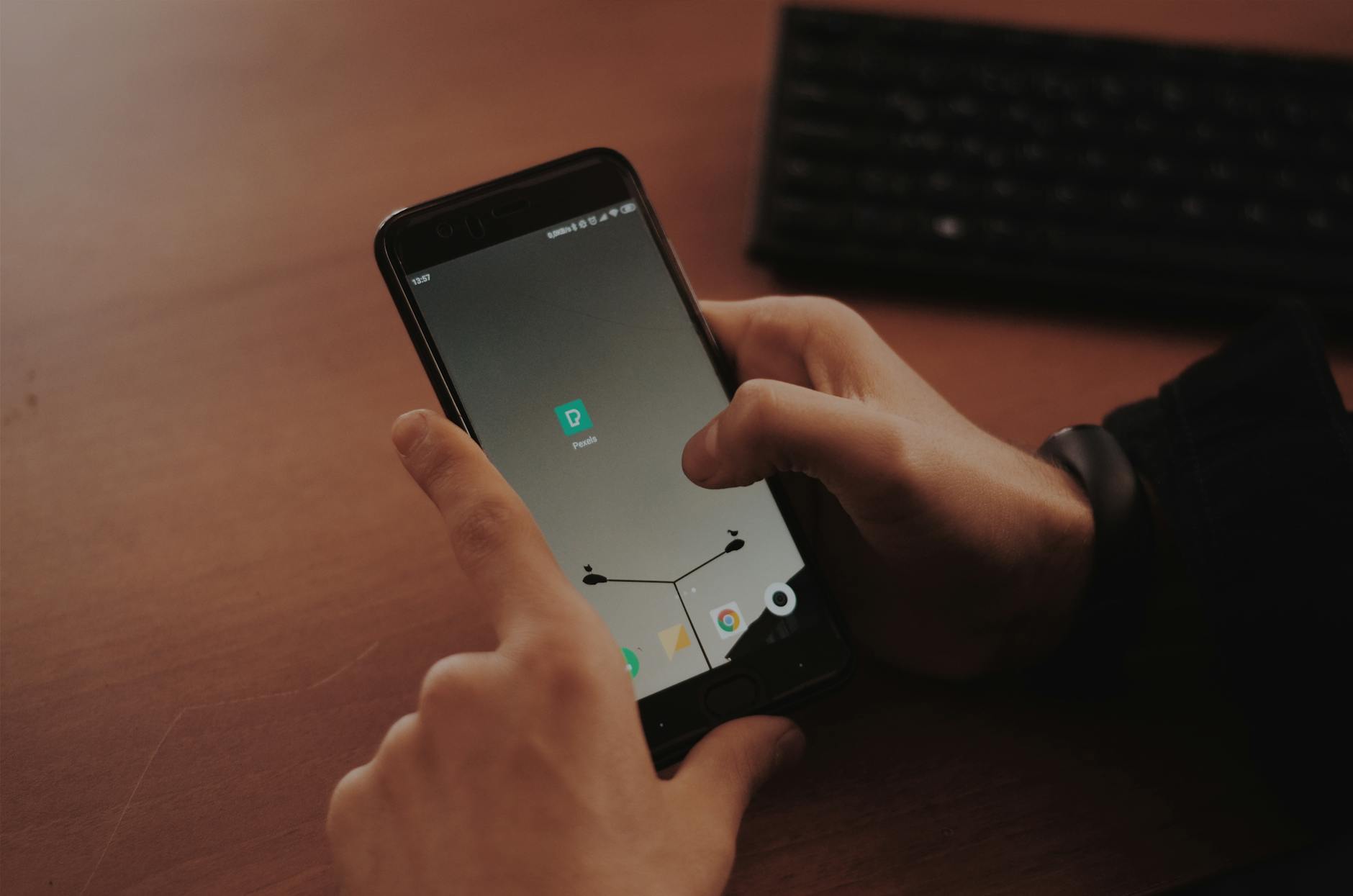
Phone Basics
Make text and icons easier to see on your phone. In this video, I'll show you how to make text easier to read. Open Settings. Tap Display or Display & Brightness. Find Text Size and slide it larger. You can also turn on Bold Text. This makes everything easier to see. If you need help, give us a call - we're here for you.
Open tutorial
Phone Basics
In this video, I'll show you how to answer a video call. When your phone rings, look for the green button. Tap Accept or swipe to answer. Make sure your camera is not covered. Speak clearly and hold your phone steady. If you have trouble, call us and we'll help you practice.
Open tutorial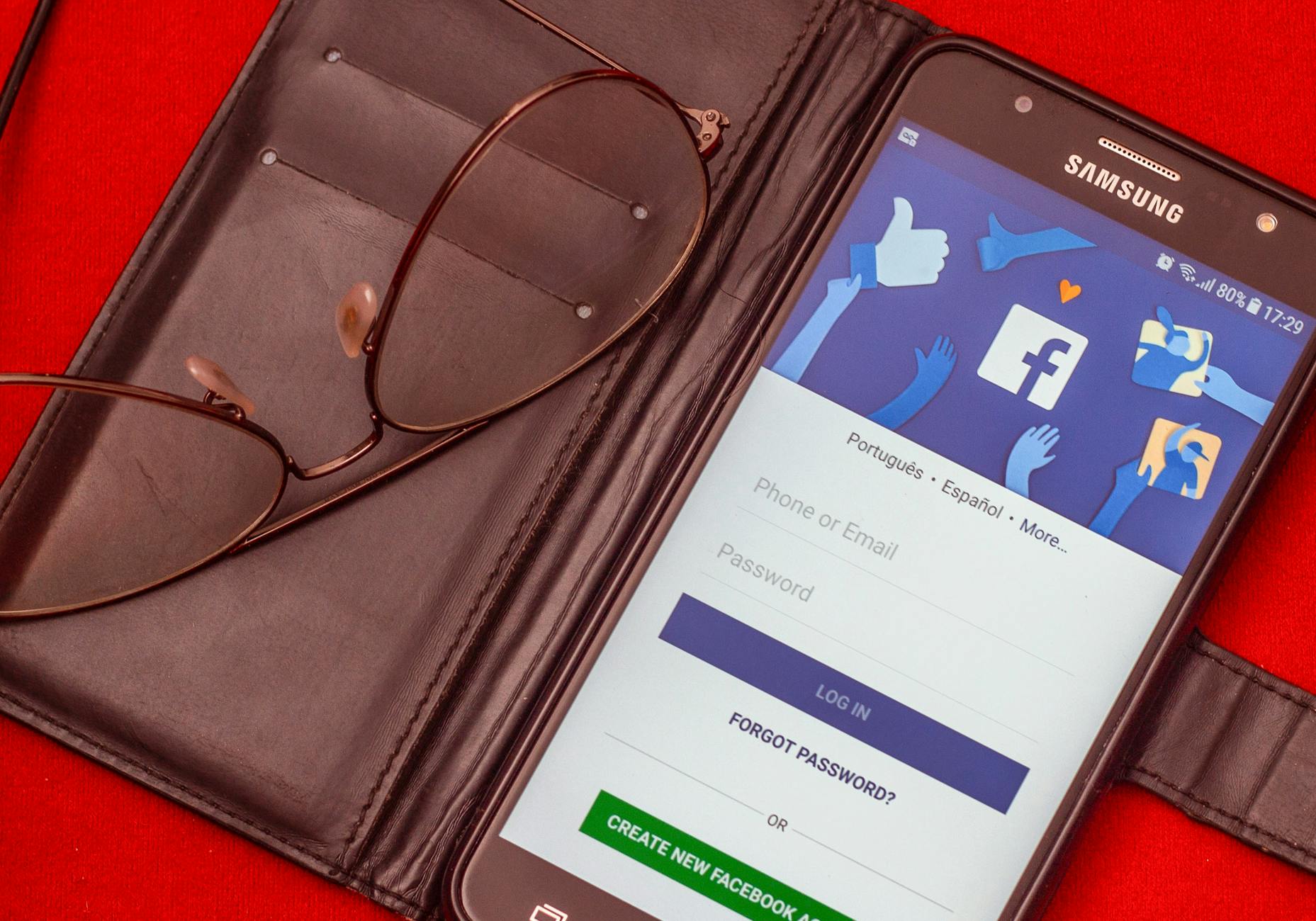
Safety & Security Help
Keep track of your passwords and protect your information. In this video, I'll show you how to keep track of your passwords. Write them in a notebook or use a password app. Include the website, username, and password. Keep it in a safe place. Never share your passwords with strangers. If you want help organizing them, we can help.
Open tutorial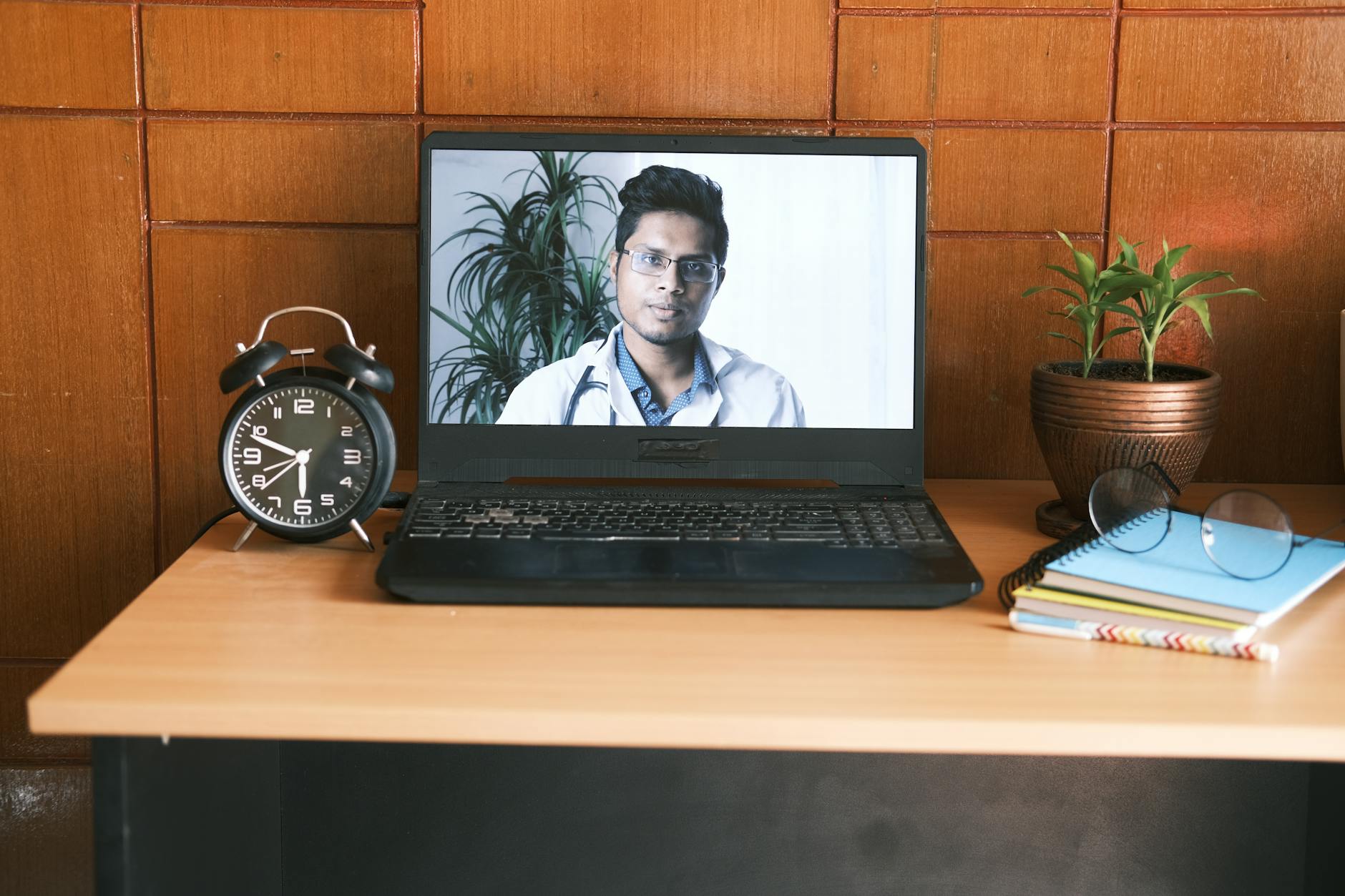
Health & VA Services
Get ready for your appointment and test everything first. Before your telehealth visit, do this. Check your internet connection. Test your camera and microphone. Log in 10 minutes early. Make sure your device is charged. If you have trouble, call us - we'll get you ready.
Open tutorialUnplug your modem and router for 30 seconds, plug the modem back in first, wait for its lights to settle, then plug the router back in. Test one device close to the router.
On most phones: open Settings → Display → Font size, and slide it larger. We can walk you through your exact device on a Get Live Help session.
Do not click any links. Do not enter passwords. Take a screenshot and call us — we will help you confirm whether it is a scam and what to do next.
Look for a “Forgot password?” link on the sign-in screen. We can help you reset it safely and store it in your password vault so you do not lose it again.
Open a live help session and a patient helper can chat with you and — if you choose — see your screen to walk you through each step.